This guide will walk you through how to purchase a DeepSeek API key, connect it to the app, and start using AI‑powered features like smarter Whisper transcriptions, one‑click subtitle translation, and automatic cleanup of Whisper‑generated subtitles.
1. Get your DeepSeek API key
- Open DeepSeek’s platform
- Go to https://platform.deepseek.com in your browser.
- If you’re not logged in, create an account or sign in.
- Set up billing (if required)
- In the DeepSeek dashboard, add a payment method or top up credit (the UI may say something like “Billing”, “Wallet”, or “Top Up”).
- Make sure your account is in good standing so API calls aren’t blocked.
- Create an API key
- Go to the API keys page: https://platform.deepseek.com/api_keys.
- Click “Create API Key” (or similar).
- Give the key a name (e.g. SubtitleCreator) and create it.
- Copy the generated key. It will usually:
- Start with something like sk-
- Be a long, random-looking string
- Store it safely
- Paste it somewhere safe (password manager, notes, etc.).
- You’ll need to paste this into the app in the next section.
2. Configure the DeepSeek API key in the app
These steps are specific to your AI Subtitle Creator (Tauri/React) app.
- Open the app
- Start the desktop app as usual (npm run tauri:dev in dev, or open the built app).
- Go to Settings → AI Providers
- In the left sidebar, click the Settings section.
- Inside Settings, open the “AI Providers” page.
- You should see a “DeepSeek” card with:
- Title like “DeepSeek API”
- A status pill saying “Configured” or “Not Configured”
- A link to platform.deepseek.com/api_keys for convenience
- Paste your API key
- In the “API Key” input (placeholder sk-…):
- Paste the key you copied from DeepSeek.
- Use the eye icon to show/hide the key if you want to verify it.
- The app text notes that the key is stored locally and never shared.
- Save the key
- Click “Save API Key”.
- If the format looks valid, you should see a green “API key saved successfully” message.
- The DeepSeek status pill should update to “Configured”, and the footer may show “DeepSeek configured”.
- (Optional) Clearing / changing the key
- On the same DeepSeek card, click “Clear” to remove the key.
- You can then paste a new key and hit “Save API Key” again.
3. Where and how to use the AI features
Once the key is configured, it’s used in two main places:
3.1 Dashboard – AI vocabulary hint for Whisper
This helps Whisper transcription by auto‑generating a vocabulary hint (names, places, etc.) using DeepSeek.
- Open the Dashboard
- From the left sidebar, go to the Dashboard page (the main file queue view).
- Add video files
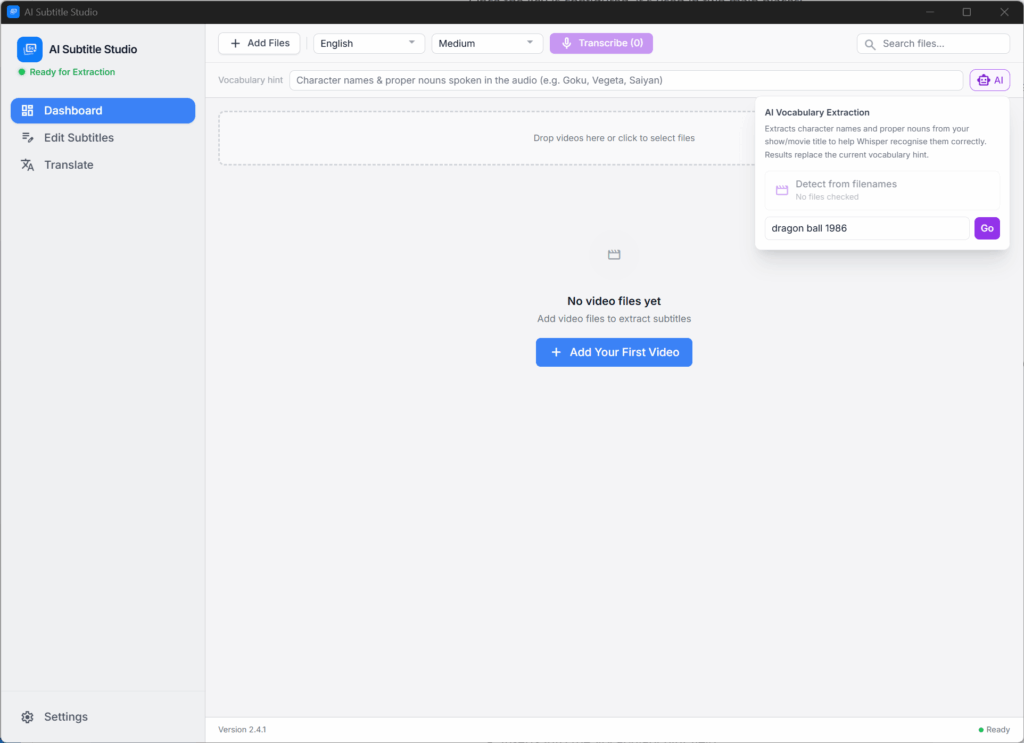
- Click “Add Files” or drag & drop videos into the drop zone.
- Check the files you want to work with in the queue.
- Find the “Vocabulary hint” row
- In the header (under the language/model selectors and Transcribe button) there’s a row labeled “Vocabulary hint”.
- There’s a text input plus an “AI” button (robot icon).
- Use the AI button (DeepSeek)
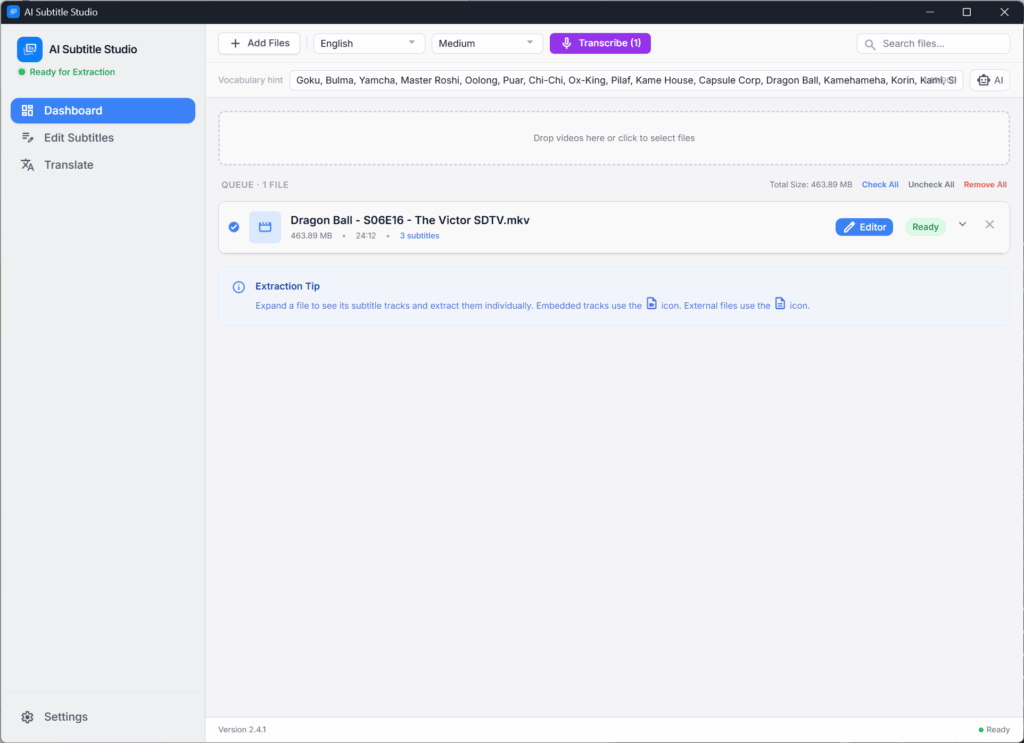
- The AI button is only clickable if your DeepSeek key is configured.
- Click “AI” to open a small popup with two options:
- Detect from filenames:
Uses DeepSeek to scan the checked video filenames (e.g. show/episode names) and produce a list of important proper nouns.
- Manual title:
Type a show or movie title (e.g. “Attack on Titan Season 2”), then click Go.
- DeepSeek returns a comma‑separated list of character names, places, and terms, which the app:
- Inserts into the Vocabulary hint field
- Automatically trims so it fits Whisper’s prompt size limit
- Transcribe with a better vocabulary
- With the vocabulary hint filled in, click “Transcribe”.
- Whisper now has a tailored vocabulary hint, improving recognition of unusual names.
If the AI button is disabled or you see a tooltip like “Configure an AI provider in Settings to use this feature”, go back to Settings → AI Providers and confirm DeepSeek is set up.
3.2 Translation page – AI subtitle translation (DeepSeek)
This is where DeepSeek is used for full subtitle translation and AI cleanup.
3.2.1 Get to the Translation workspace
- From the left sidebar, open the Translation page (or use the in‑app navigation to go to the translation screen).
- If no files are loaded yet, you’ll see an empty state with a translate icon and:
- A suggestion to Open Videos or Open Folder
- An optional blue info banner saying “AI translation not configured” if DeepSeek isn’t set
- That banner has a link “Open Settings → AI Providers” which takes you straight to the DeepSeek settings page.
3.2.2 Load subtitles to translate
- Click “Open Videos” or “Open Folder” and select files.
- The app will scan for subtitle tracks and build a file list on the left.
- Select the file(s) whose subtitles you want to translate.
3.2.3 Configure AI translation settings
In the top translation header, you’ll see:
- Target language dropdown (Target:)
- Pick the language you want to translate into (e.g. English, Spanish, etc.).
- Context input (Context:)
- (Optional) A short text like show name, style guidance, or notes.
- This context is sent to DeepSeek to improve translation quality.
3.2.4 Run AI translation (DeepSeek)
- Select which subtitles to translate
- Check multiple files or just focus on the current one.
- The app will handle single or bulk translation:
- Click the “Translate” (AI) button
- Button label: “Translate” (with a smart_toy / robot icon).
- It’s disabled if:
- DeepSeek isn’t configured
- There are no files loaded
- A translation is already running
- What happens
- The app grabs your current subtitles and context.
- It uses your DeepSeek API key to call https://api.deepseek.com/v1/chat/completions under the hood.
- Translated subtitles are written back into the UI and also auto‑saved to sidecar files where possible.
- Status and progress
- While running, the button text changes to something like:
- Translating… (x/y) or
- Translating n/m… for bulk mode.
- Progress indicators show how many files/segments are done.
If you try to trigger translation with no key, you’ll see alerts such as“Please configure your DeepSeek API key in Settings → AI Providers”.
3.3 Translation page – “AI Clean Up” for Whisper subtitles
This uses DeepSeek to polish Whisper‑generated subtitles (punctuation, casing, readability) without changing timing.
- In the Translation header, locate the “AI Clean Up” button.
- Purple button labeled “AI Clean Up” with a magic‑wand style icon (auto_awesome).
- Select Whisper‑generated subtitles
- Either:
- Select one Whisper‑generated file, or
- Check multiple files that are marked as Whisper‑generated and have source subtitles.
- The button will stay disabled if:
- DeepSeek is not configured,
- No suitable Whisper‑generated subtitles are selected,
- Or there are no source subtitles loaded.
- Click “AI Clean Up”
- A modal appears explaining that DeepSeek will:
- Fix casing, punctuation, minor transcription issues, etc.
- Keep the original timing/sync intact.
- Confirm to run it.
- Review results
- The cleaned subtitles replace or augment the existing Whisper output.
- Progress is shown (e.g. Cleaning (x/y)).